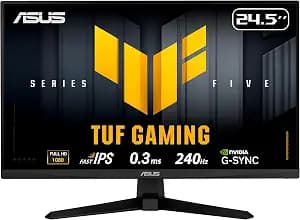
ASUS TUF Gaming Series 5 24.5” 1080P Monitor (VG259QM5A) – Full HD, Fast-IPS, 240Hz, 0.3ms, G-SYNC Compatible, FreeSync Premium, 99% sRGB, DisplayWidget, Gaming AI, 3 yr Warranty
Description
ASUS TUF Gaming VG259QM5A is a 24.5-inch Full HD monitor that delivers five advanced upgrades for top-tier gaming. It features a lightning-fast 240Hz refresh rate and 0.3ms response time, along with AMD FreeSync™ Premium and NVIDIA® G-SYNC® compatibility for ultra-smooth gameplay. With enhanced color performance, updated Gaming AI, and effortless control via DisplayWidget Center, this monitor keeps you ahead of the competition.
Comparez les compromis
Produits similaires, côte à côte
Une sélection aléatoire de produits analysés de la même catégorie. Des produits différents ne sont pas nécessairement interchangeables.

ARZOPA Portable Monitor, 15.6'' 1080P FHD Laptop Monitor USB C HDMI Computer Display HDR Eye Care External Screen w/Smart Cover for Mac Phone Xbox Switch PS5-S1 Table

KEFEYA Laptop Screen Extender, 14" Portable Monitor for Laptop, 1440P QHD Triple Screen Monitor Extender for 13"-17" Laptops, HDMI/USB-C for MacBook, Windows, Chrome, Switch, Plug & Play

Samsung 27” Odyssey OLED G5 (G50SF) QHD & QD-OLED Gaming Monitor, 180Hz Refresh Rate, 0.03ms (GtG) Response Time, NVIDIA G-Sync Compatible, AMD FreeSync™, LS27FG500SNXZA
Une chose de moins à chercher
Avant d'acheter : questions rapides
Does the ASUS TUF Gaming VG259QM5A deliver a true 240Hz experience on consoles, and do I need to buy a special cable to get the full refresh rate on PC?
For PC gamers, the 240Hz refresh rate is best unlocked via DisplayPort 1.2, which is included in the box — you don't need to spend extra on a premium cable. However, if you're planning to plug in a PS5 or Xbox Series X, you'll be capped at 120Hz over HDMI (which is still fantastic), and the monitor will auto-negotiate the frame rate. For competitive shooters on PC, you'll definitely feel the difference, but if you're mostly on console, the 240Hz headroom is a future-proofing bonus rather than a daily necessity.
The specs mention 99% sRGB — is the monitor colour-accurate right out of the box, or will I need to calibrate it for photo work?
Many users on Reddit note that the out-of-the-box preset leans toward the vivid side, which is great for gaming but not ideal for accurate photo editing. If you need true sRGB coverage, you'll want to switch the display to the "sRGB" mode in the On-Screen Display (OSD) menu. There is also a downloadable DisplayWidget utility that lets you tweak brightness and contrast easily. After a quick profile adjustment, most users achieve solid colour fidelity, though it's not a dedicated professional monitor. For pure gaming, just leave it on "Racing" mode and enjoy the punchy colours.
Is there a risk of the stand being wobbly, and will the monitor work on a wall mount or monitor arm?
The stand is functional and offers tilt, swivel, and height adjustments, but several YouTube reviewers have pointed out that it isn't the sturdiest base in the TUF lineup — you'll notice a slight shake if you bump your desk during intense gaming. The good news is that the rear panel supports the standard 100x100mm VESA mount pattern, so you can easily attach it to a third-party arm or wall bracket for a rock-solid setup. If you're using the standard stand, just make sure your desk surface is stable.
What exactly does the "Gaming AI" feature do, and is it worth turning on for casual players?
The Gaming AI is Asus's intelligent assistant that helps you optimise visuals automatically. For example, it can adjust the dynamic contrast in dark scenes to help you spot enemies hiding in shadows and can set a crosshair overlay even if the game doesn't have one. For casual players, it's a handy "set-and-forget" tool that improves visibility without fiddling with manual settings. That said, most competitive players report that they prefer to manually tweak settings, so don't feel pressured to use it. It's a smart quality-of-life addition, but not a game-changer for every title.
How does the 0.3ms response time hold up for high-action gaming, and will I experience ghosting in games like Valorant or Rocket League?
In real-world usage, the 0.3ms spec refers to the absolute minimum pixel transition, and gamers on TikTok and forums generally agree that motion handling is excellent. We recommend setting the "Overdrive" on the "Level 3" or "Faster" threshold to balance speed and clarity, as pushing it to the maximum can introduce slight overshoot. At 240Hz, you'll experience minimal ghosting in fast-paced titles, and the Fast-IPS panel is a huge upgrade over cheaper TN monitors in terms of colour and viewing angles. For games where you're running 240+ fps, it feels incredibly crisp and responsive.
D'un produit similaire mieux noté dans cette catégorie : KOORUI 24 Inch Gaming Monitor, 180Hz 1080P VA Display with 3000:1 Contrast
Does this monitor really run at 180Hz, and what do I need to enable it?
Yes — it's a native 180Hz panel, but you'll need to switch it on manually. Connect via the included HDMI cable (or a DisplayPort-capable setup), then set 180Hz in your GPU's display settings; it defaults to a lower refresh rate out of the box. Many Reddit and YouTube users note that enabling Adaptive Sync/FreeSync alongside it gives the smoothest experience, and it works with both AMD and NVIDIA cards.
How does the VA panel perform for gaming and everyday work?
The 3000:1 contrast gives noticeably deeper blacks than typical IPS budget monitors, which shines in dark game scenes and movies. For fast-paced competitive shooters, some TikTok and Reddit users mention mild ghosting/smearing in dark transitions — it's great for casual gaming, students, and office work, but color-critical creators or hardcore FPS players may prefer an IPS panel.
The stand looks basic — can I adjust the height or mount it?
Correct, the included stand only tilts (-5° to 20°) and doesn't offer height, swivel, or pivot adjustment, and a few users find the base slightly wobbly. The good news: it's VESA 100×100mm compatible, so a monitor arm or desk mount solves ergonomics entirely — a popular fix among dual-monitor and dorm-room setups.
What if I receive a unit with a dead pixel or backlight bleed?
Budget monitors can vary unit to unit, and some buyers report stuck pixels or corner bleed — but KOORUI backs it with a 3-year manufacturer warranty. If your unit arrives defective, contact the seller for a replacement or refund promptly; most users who did so report a smooth resolution, so inspect the screen within the return window.
Is it good value, and who is it best suited for?
At around $120, it's widely praised as one of the best budget 180Hz options — ideal for students, casual gamers, home-office users, and compact or dual-monitor setups. Just set expectations: no built-in speakers, a single HDMI plus VGA, and basic ergonomics. If you need height adjustment, color accuracy, or built-in audio, consider spending more on an IPS alternative.
Les réponses se limitent à la fiche du fabricant et aux avis que nous avons analysés. Les questions que ces sources ne permettent pas de traiter restent sans réponse ici.
Transparent par conception