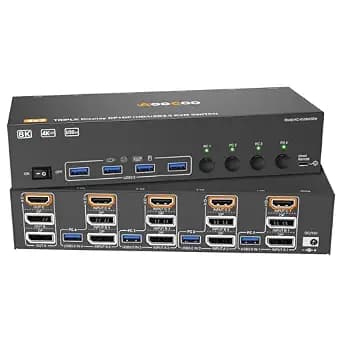
HDMI Displayport KVM Switch 3 Monitor 4 Computer 8K@60Hz/4K@144Hz KVM Switches with 4 USB 3.0 Port,Wired Remote,Power Adapter and 4 USB3.0 Cables Included
Description
【Triple Monitor KVM Switch】2 Displayport1.4+HDMI2.1 USB3.0 KVM Switch allows 4 desktops to share 3 monitors and 4 USB3.0 ports(keyboard,mouse and other USB devices).It can make your work space tidy and efficient, also a premium choice for working from home.NOTE:Only when your computer supports 3 display or multi display, you can use this KVM to achieve 4 PC to share 3 monitors.; 【UHD8K@60Hz/4K@144Hz】The resolution and fresh rate of triple monitor KVM switch supports up to 8K@60Hz/4K@144Hz, ☛☛☛But please note that:①HDMI part supports 8K@60Hz,4K@120Hz,4K@60Hz,and backward compatible.②Displayport part support 8K@30Hz ,4K@144Hz and backward compatible.✔✔✔Warming: Please use HDMI2.1 and DP1.4 cables, if the set distance allows,the length of cabels more short more better.; 【3 Monitors KVM Switches with 4 USB 3.0 Ports】Triple monitor HDMI+2 Displayport KVM switch with 4 USB 3.0 ports which can recognize keyboard,mouse,printer,scaner and other USB devices. USB 3.0 offers data transfer speeds of up to 5Gbps, while USB 2.0 offers data transfer speeds of only 480Mbps.; 【Extended Mode&Copy Mode】Triple display KVM switches require 2 DP+HDMI connections per computer, and for computers with discrete and integrated graphics cards require both 2 DP+HDMI ports must belong discrete graphics card.; 【Compatibility & 2 Switching Methdos】AOOCOO triple monitors KVM switch driver-free and plug and play. you can press the button on the panel or use the wired remote controller(included in the package) to switch the computers.; 【Package List】1*Triple Monitor USB3.0 KVM Switch+4*USB3.0 Cables(1.5m/4.9ft)+1*Wired remote controller(1.52m/5ft)+1*User manual+1*12V Power Adapter(1.52m/5ft).
Compare the trade-offs
Similar products, side by side
A random selection of analyzed products from the same category. Different products are not necessarily interchangeable.

HDMI KVM Switch 1 Monitors 2 Computers 4K@60Hz USB KVM Switches 2 Ports for 2 PC Sharing Single Monitor and Keyboard Mouse with Wired Extend Controller Plug and Play

KVM/USB Mode KVM Switch 2 Monitors 2 Computers with Audio, ANXQQ 8K@30Hz 4K@144Hz USB 3.0 Dual Monitor KVM Switch Displayport, Share 4 USB Devices with Wired Control and Power Adapter

KVM Switch 3 Monitors 4 Computers with Audio, HDMI + DisplayPort 8K@30Hz/4k@144Hz DP KVM Switcher, USB 3.0 KVM Switches for 4 PC Share 3 Display, Suitable for Office/Work from Home, Programmer Setup
One less thing to search
Before you buy: quick questions
I have a mixed setup with a Mac and a PC. Will this KVM switch work seamlessly between them, and will my keyboard shortcuts (like Command vs. Control) function correctly?
Yes, this KVM is platform-agnostic and works with macOS, Windows, Linux, and even Chrome OS. It operates at the hardware level, so your OS doesn't interfere with the switching process. Regarding keyboard shortcuts, the KVM simply relays the keystrokes to the active computer. If you use a Windows keyboard with a Mac, you may need to swap the Command and Control key functions in your Mac's system preferences, as the KVM does not remap keys.
I’m worried about the slight switching delay mentioned in some reviews. Will this affect my gaming or high-precision work?
The delay mentioned is in the milliseconds and is often imperceptible to most users. It is the time it takes for the monitor to re-sync with the new video signal. For general productivity, coding, or even casual gaming, you won't notice it. However, if you are a competitive gamer who needs instantaneous toggling, or if you are sensitive to micro-stutters, you might find it noticeable. For most, it's a non-issue, but it's good to be aware of.
Does the KVM switch support high refresh rates like 144Hz or 240Hz on all three monitors simultaneously?
This KVM supports up to 8K@60Hz or 4K@144Hz on a single monitor. However, the bandwidth is shared across the three outputs. To achieve 4K@144Hz, you will likely need to run that monitor on the main DisplayPort output and use the other ports for secondary displays at lower resolutions or refresh rates. It's best to check your specific monitor's manual to ensure compatibility with your desired refresh rate setup.
The product listing mentions a wired remote. Is it necessary, or can I switch computers using just my keyboard?
The wired remote is a convenient addition, but it is not your only option. You can switch computers using hotkey commands on your keyboard (e.g., pressing "Scroll Lock" twice). The remote is useful if your KVM is tucked away and you prefer a physical button, or if you want to switch USB peripherals independently from the video source. Many users find the hotkey method sufficient and rarely use the remote.
I see that this model doesn't have audio jacks. How can I get sound from my different computers to my speakers?
You are correct; this specific model does not have a 3.5mm audio jack. This is a common point of feedback. To get audio, you have two options: 1) Connect your speakers directly to your monitor and use the monitor's audio output, as the KVM will switch the video signal (and often the audio embedded in the HDMI/DP signal) to that monitor. 2) Use a separate, inexpensive USB audio switch to toggle your speakers between the computers. This is a common workaround for users who need a dedicated audio solution.
From a similar, more-reviewed product in this category: Unitek HDMI KVM Switch 1 Monitor 2 Computers with Power Adapter
Can I switch between computers with a keyboard shortcut, or do I have to press a button?
This model uses a physical button on the unit — there's no hotkey switching. That's the most common complaint in reviews, so if keyboard shortcuts are a must-have for your workflow, you'll want to look at a hotkey-capable KVM instead. If you're fine reaching for a button (or placing the switch within arm's reach), it works reliably.
Do I need to use the included power adapter, or can it run without it?
Use the adapter. While some users have tried bus-powering it, the most stable experience — especially with wireless peripherals — comes from plugging in the included DC adapter. Several reviewers noted mouse dropouts when running unpowered, so treat the adapter as required, not optional.
Will it work with my Mac and Windows PC together, and does it handle 4K?
Yes, mixed Mac/Windows setups are one of its most common use cases, and it's plug-and-play for both. For resolution, check your monitor's specs against the switch's rated maximum before buying — some users with high-refresh or 4K@60Hz displays ran into EDID handshake issues (blank screen after sleep), which is the second-most-cited complaint. Standard 1080p and 4K@30Hz setups report smooth sailing.
Are the cables included, and are they long enough for a desktop tower?
Yes — HDMI and USB cables are in the box, which reviewers consistently call a nice bonus. That said, they're on the short side (roughly 3 ft), so they're ideal for laptop docks or monitors sitting close to both computers. If your tower lives under the desk, plan on buying longer cables.
Who is this KVM best suited for — and who should skip it?
It's a great fit for remote workers, students, or anyone sharing one monitor, keyboard, and mouse between two computers on a budget, especially if you value compact size, included cables, and simple setup. Skip it if you need hotkey switching, dual-monitor output, DisplayPort, or rock-solid EDID behavior with a fussy high-refresh display — in those cases, a TESmart or Cable Matters alternative will save you the return shipping.
Answers are limited to the manufacturer's listing and the reviews we analysed. Questions those sources cannot support are not answered here.
Transparent by design